
Как пользоватьсяHow to use
От скачивания до профиля игрока — за пару минут.From download to a player profile in a couple of minutes.
Шаг 0Step 0
УстановкаInstall
Сборки самодостаточные: .NET ставить не нужно.Builds are self-contained: .NET is not required.
Windows 10/11 x64
Распакуйте DemReview-<версия>-win-x64.zip и запустите DemReview.exe. Если SmartScreen предупредит — «Подробнее → Выполнить в любом случае».Unpack DemReview-<version>-win-x64.zip and run DemReview.exe. If SmartScreen warns — More info → Run anyway.
Linux x64
Распакуйте и запустите:Unpack and run:tar -xzf DemReview-*-linux-x64.tar.gz./DemReview-*-linux-x64/DemReview
Первый запускFirst start
Программа спросит язык интерфейса — его можно сменить потом в «Настройках».The app asks for the interface language — you can change it later in Settings.
ПошаговоStep by step
Разбор демкиReviewing a demo
Шаг 1–2Steps 1–2
Откройте демку и выберите игрокаOpen a demo and pick a player
- Кнопка «Открыть демку» (Ctrl+O), перетаскивание
.demна окно или «Открыть с помощью → DemReview».The Open demo button (Ctrl+O), drag a.demonto the window, or Open with → DemReview. - Разбор идёт в фоне, прогресс — внизу окна, отмена — Esc. Повторное открытие той же демки — из кеша за секунды.Parsing runs in the background with progress at the bottom of the window; Esc cancels. Reopening the same demo takes seconds thanks to the cache.
- Выберите игрока в панели игроков: команды — отдельными списками, ник можно найти поиском. Все разделы покажут только его.Pick a player in the player panel: teams are listed separately and the search finds a nickname. Every section now shows only them.
- При первой демке программа предложит отметить себя — дальше вы будете выбраны сразу и отмечены «Вы».On the first demo the app offers to mark yourself — from then on you are selected right away and marked You.
- Разделы переключаются в полосе слева: «Радар», «Статистика», «Профиль», «Настройки».Sections are switched in the bar on the far left: Radar, Stats, Profile, Settings.
Шаг 3Step 3
Радар и повтор раундаRadar and round replay
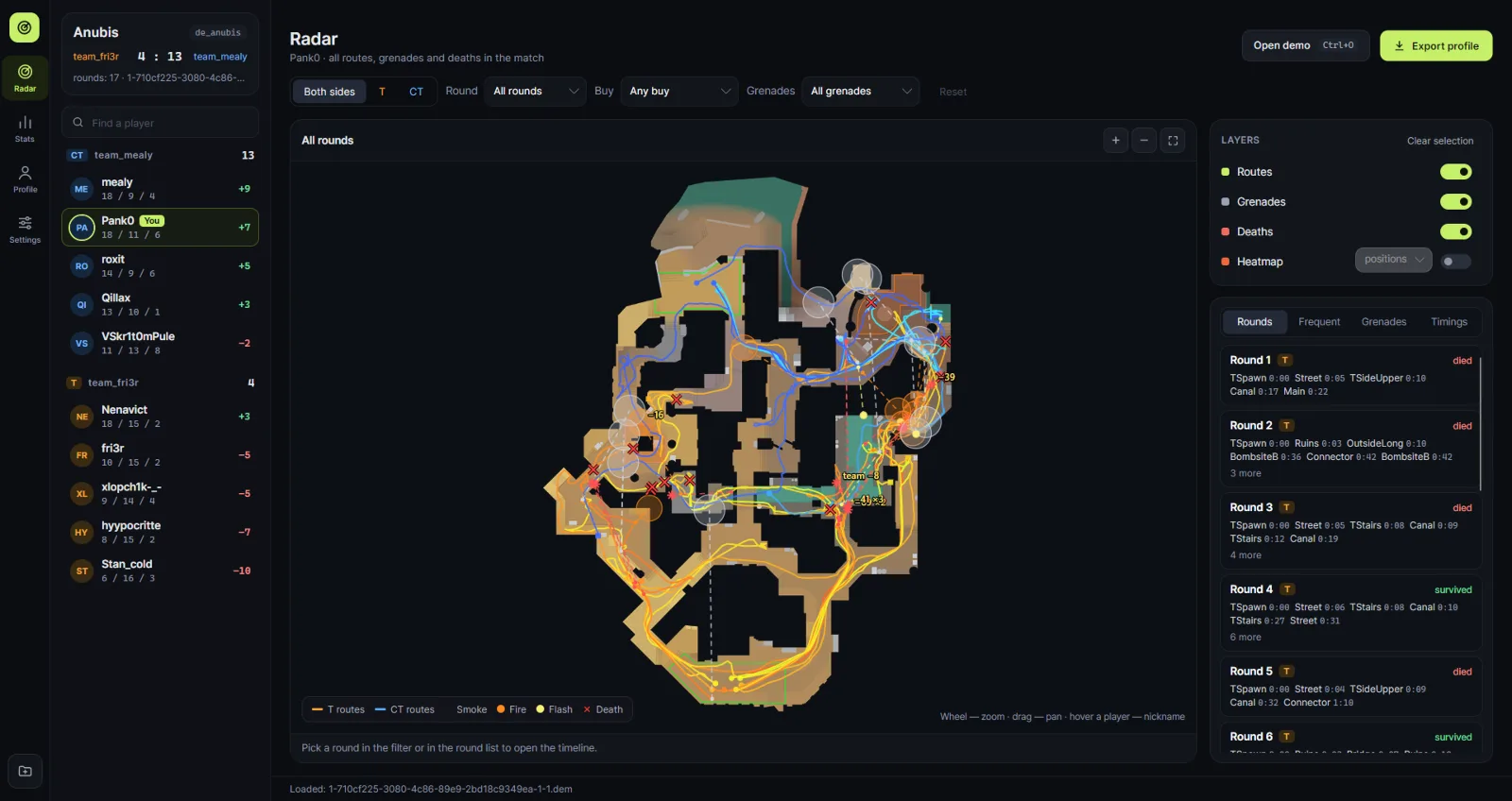
- Фильтры — над картой: сторона, раунд, закупка, тип гранаты.Filters are above the map: side, round, buy, grenade type.
- Слои включаются справа: маршруты, гранаты, смерти, тепловая карта. Зум — колесом или кнопками «+» и «−», сдвиг — перетаскиванием, сброс — двойным кликом.Layers are toggled on the right: routes, grenades, deaths, heatmap. Zoom with the wheel or the +/− buttons, pan by dragging, double-click to reset.
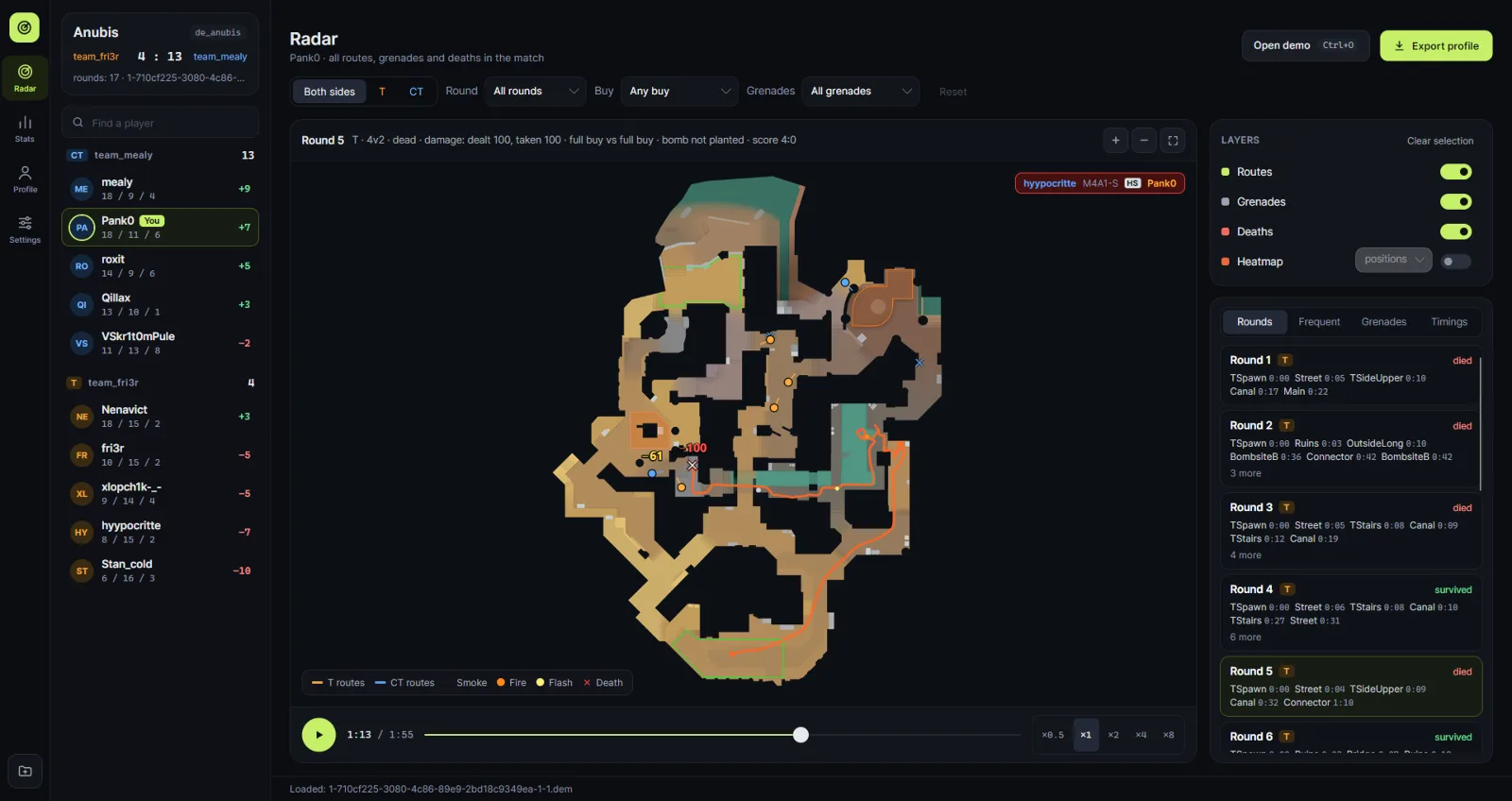
- Выберите раунд в списке «Раунды» — появится таймлайн: кнопка воспроизведения или ползунок, скорость ×0,5–×8.Select a round in the Rounds list to open the timeline: press play or drag the slider, speed ×0.5–×8.
- Наведите мышь на игрока — ник, оружие и HP. Вкладки «Частые», «Гранаты» и «Тайминги» подсвечивают свои раунды и раскидки.Hover a player to see the nickname, weapon and HP. The Frequent, Grenades and Timings tabs highlight their rounds and lineups.
Шаг 4Step 4
СтатистикаStatistics
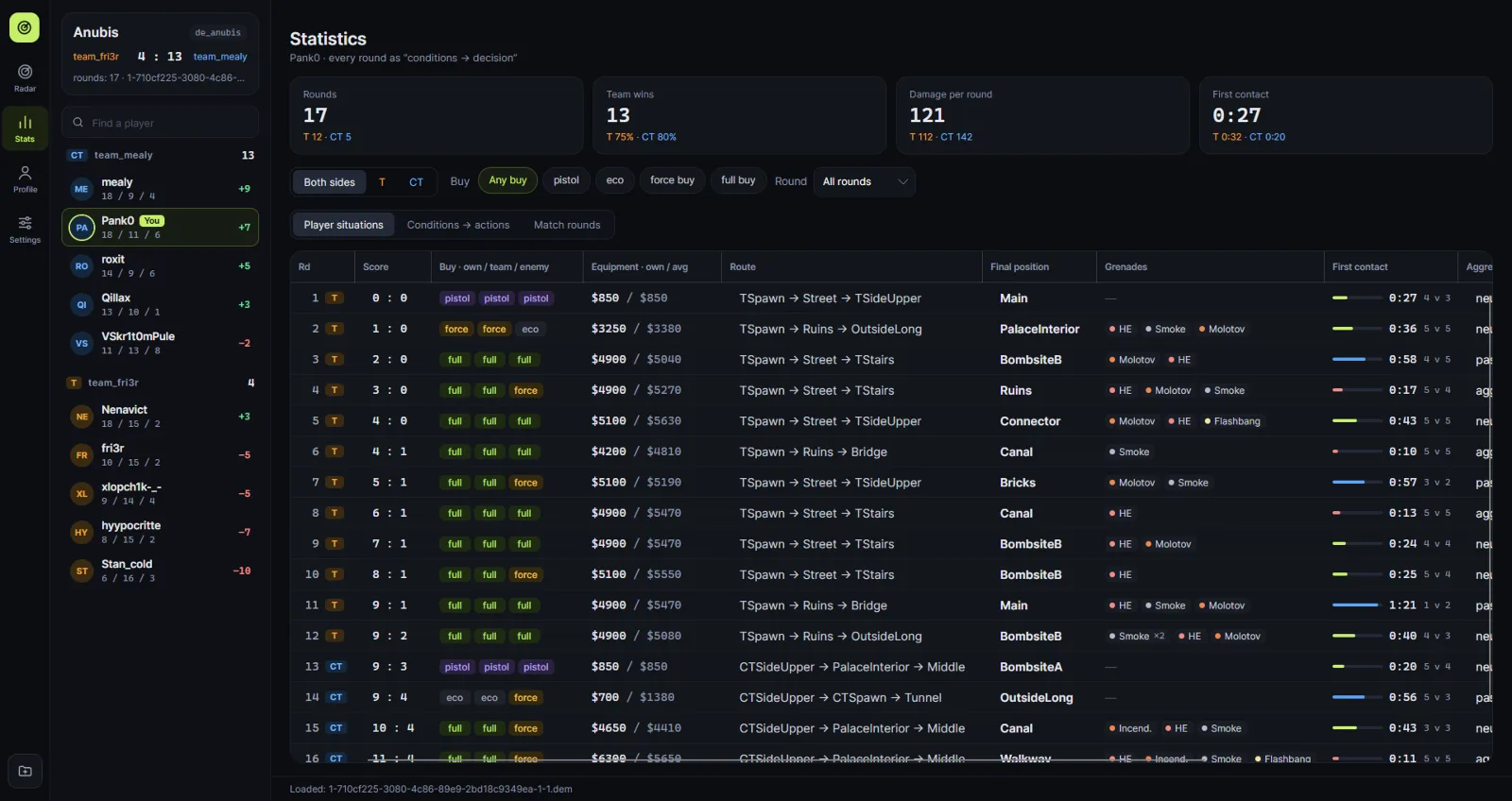
- Плитки сверху — сводка: раунды, победы команды, урон за раунд и первый контакт, всего и по сторонам. Сторона и закупка переключаются прямо на странице.The tiles on top sum it up: rounds, team wins, damage per round and first contact, overall and per side. Side and buy are switched right on the page.
- «Ситуации игрока» — каждый раунд: сторона, закупка, счёт и что игрок сделал.Player situations — every round: side, buy, score and what the player did.
- «Условия → действия» — частотные таблицы: как часто решение следует за условием.Conditions → actions — frequency tables: how often a decision follows a condition.
- «Раунды матча» — закупки обеих команд по раундам.Match rounds — both teams' buys per round.
Шаг 5–6Steps 5–6
Профиль игрока и экспортPlayer profile and export
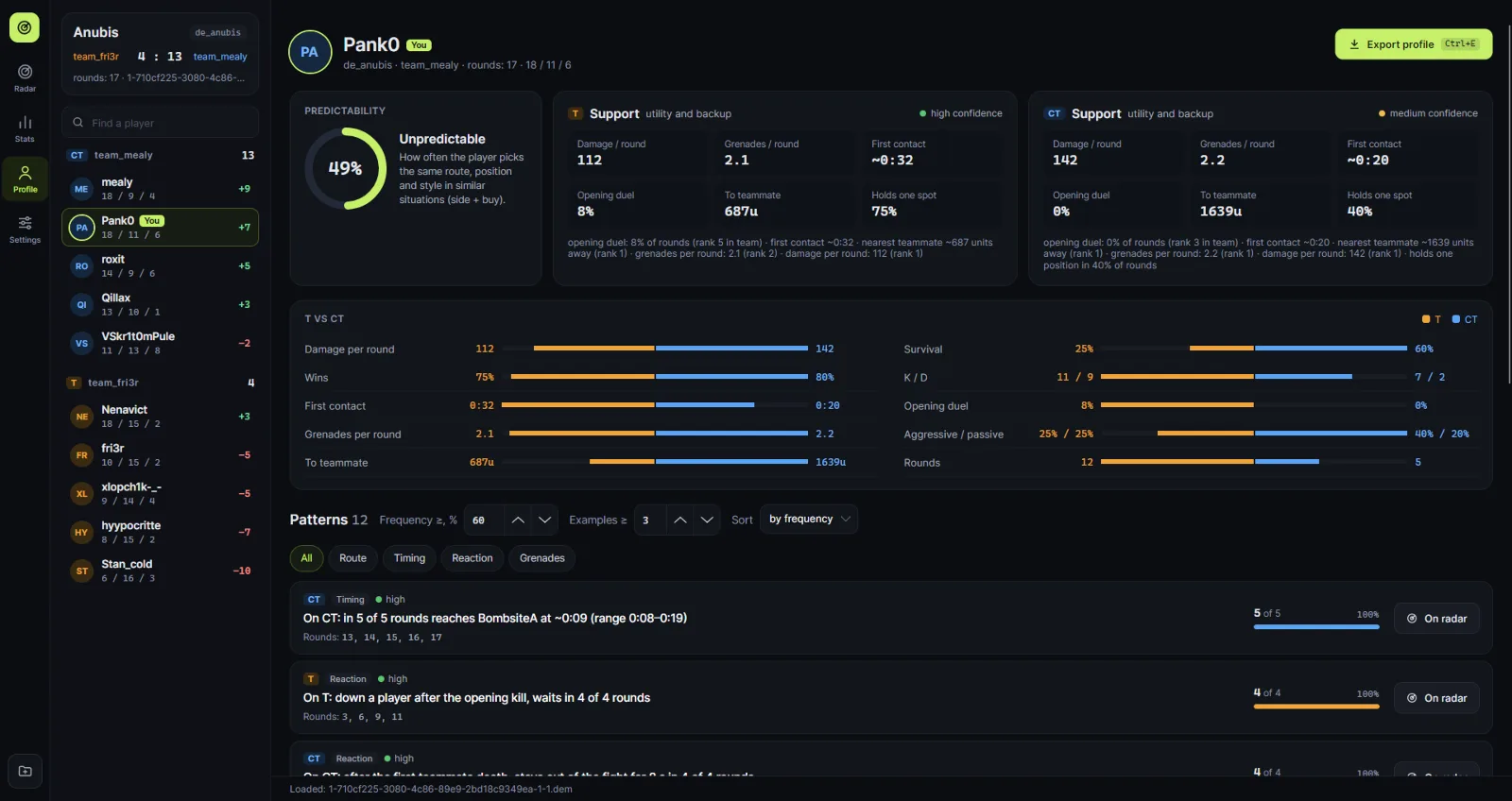
- Сверху — индекс предсказуемости, роль на каждой стороне с ключевыми метриками и сравнение T и CT.On top: the predictability index, the role on each side with key metrics, and a T vs CT comparison.
- Паттерн показывается, если встречается не реже 60% случаев и минимум в 3 раундах; оба порога меняются на странице или в «Настройках». Чипы категорий сужают список.A pattern is shown if it happens in at least 60% of cases and in at least 3 rounds; both thresholds can be changed on the page or in Settings. Category chips narrow the list.
- Смотрите на «N из M» и цвет точки: зелёный — высокая уверенность, жёлтый — средняя, серый — низкая. Одна демка — малая выборка.Look at "N of M" and the dot color: green — high confidence, yellow — medium, grey — low. One demo is a small sample.
- Клик по паттерну подсвечивает раунды-примеры на радаре, «На радаре» — ещё и переключает на него.Clicking a pattern highlights its example rounds on the radar; On radar also switches to it.
- Экспорт — Ctrl+E или кнопка «Экспорт профиля»: Markdown или JSON по расширению файла, текст на языке интерфейса.Export — Ctrl+E or the Export profile button: Markdown or JSON by file extension, text in the interface language.
Шаг 7Step 7
НастройкиSettings
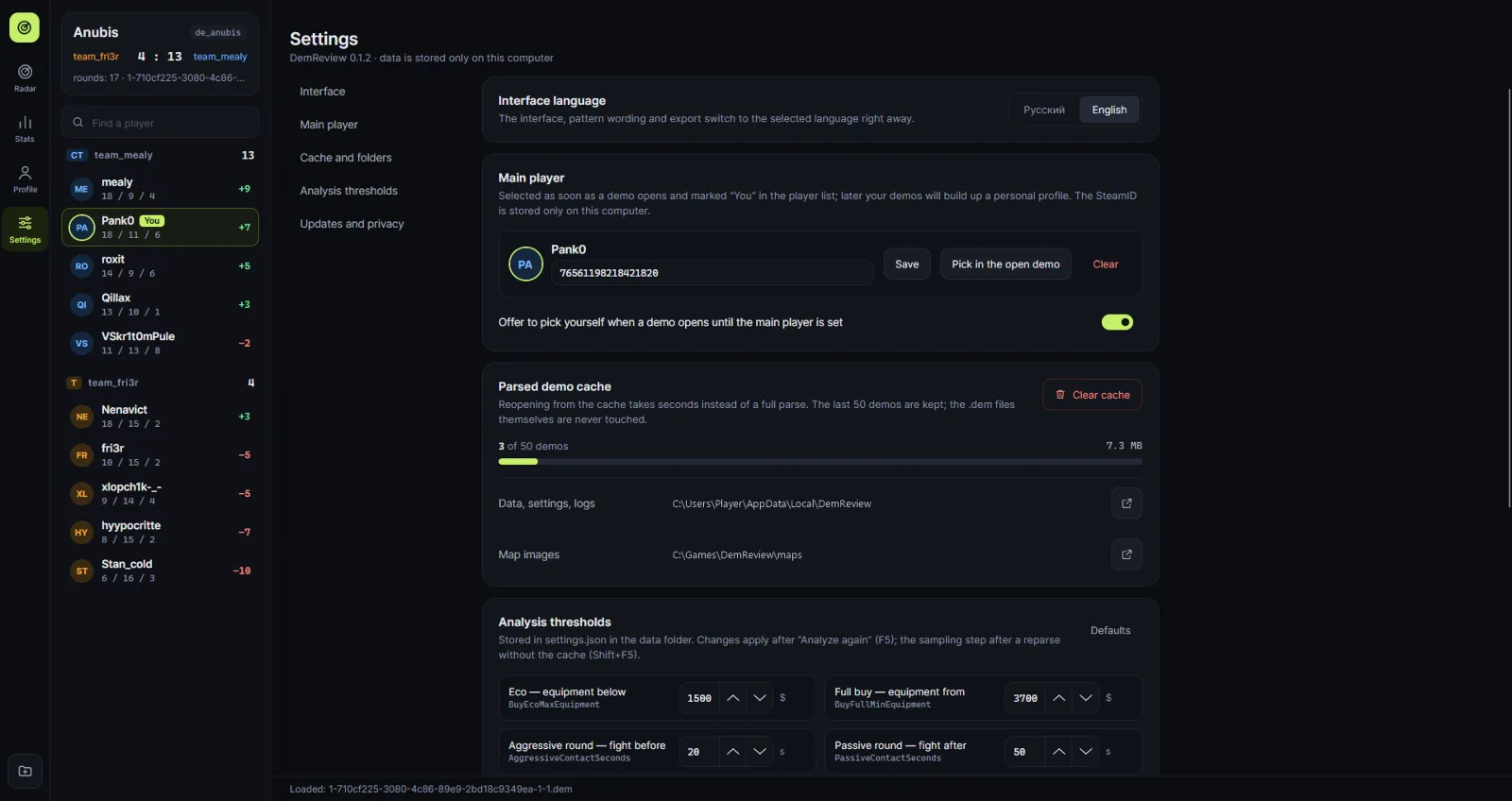
- Язык интерфейса переключается сразу, вместе с формулировками паттернов и экспортом.The interface language switches right away, along with pattern wording and export.
- Основной игрок — ваш SteamID: введите его вручную или выберите себя в открытой демке.Main player — your SteamID: type it in or pick yourself in the open demo.
- Кеш и папки — сколько демок сохранено, очистка кеша, папки данных, журналов и карт.Cache and folders — how many demos are cached, clearing the cache, the data, log and map folders.
- Пороги анализа — типы закупки, агрессия, паттерны, раскидки, шаг выборки. Применяются после F5, шаг выборки — после Shift+F5.Analysis thresholds — buy types, aggression, patterns, lineups, sampling step. They apply after F5; the sampling step after Shift+F5.
- Обновления и приватность — проверка новых версий и анонимная статистика, обе отключаются.Updates and privacy — the new-version check and anonymous statistics; both can be turned off.
Горячие клавишиHotkeys
| КлавишиKeys | ДействиеAction |
|---|---|
| Ctrl+O | Открыть демкуOpen a demo |
| Ctrl+E | Экспорт профиля игрокаExport the player profile |
| F5 | Повторный анализRe-run the analysis |
| Shift+F5 | Разобрать демку заново (без кеша)Parse the demo again (bypass the cache) |
| Esc | Отменить разборCancel parsing |
Настройки и данныеSettings and data
Раздел «Настройки»: язык, основной игрок, кеш разобранных демок, папки данных и карт, пороги анализа, проверка обновлений и статистика использования.The Settings section: language, main player, parsed demo cache, data and map folders, analysis thresholds, update check and usage statistics.
| ЧтоWhat | ГдеWhere |
|---|---|
| Папка данныхData folder | Windows: %LOCALAPPDATA%\DemReviewLinux: ~/.local/share/DemReview |
settings.json | Настройки, пороги анализа, размер и положение окнаSettings, analysis thresholds, window placement |
demreview.db | Кеш разобранных демок (последние 50); очищается в «Настройках»Parsed demo cache (last 50); cleared in Settings |
logs/ | Журналы за 14 дней — приложите к сообщению об ошибкеLogs for 14 days — attach them to a bug report |
Пороги анализа (типы закупки, агрессия, паттерны, раскидки, шаг выборки) правятся в «Настройках → Пороги анализа» и хранятся в settings.json; полный список ключей — в README.
Analysis thresholds (buy types, aggression, patterns, lineups, sampling step) are edited in Settings → Analysis thresholds and stored in settings.json; see the full list of keys in the README.
Частые вопросыFAQ
Где взять демку?Where do I get a demo?
- Ваши матчи в CS2: «Смотреть → Ваши матчи» → скачать запись. Файл
.demпоявится в папке игрыgame\csgo\replays.Your CS2 matches: Watch → Your Matches → download the replay. The.demfile appears in the game foldergame\csgo\replays. - FACEIT: на странице матча — кнопка скачивания демки.FACEIT: the match page has a demo download button.
- Профессиональные матчи: демки GOTV публикуются на HLTV.Pro matches: GOTV demos are published on HLTV.
Если демка пришла в архиве (.zip, .rar, .gz, .zst), сначала распакуйте её.If the demo comes in an archive (.zip, .rar, .gz, .zst), unpack it first.
Подходят ли демки CS:GO?Do CS:GO demos work?
Нет, только Counter-Strike 2: формат демок CS:GO другой.No, only Counter-Strike 2: CS:GO demos use a different format.
Windows пишет «Система Windows защитила ваш компьютер»Windows says "Windows protected your PC"
Это SmartScreen: программа не подписана платным сертификатом. Нажмите «Подробнее → Выполнить в любом случае». Код открыт, а подлинность архива можно проверить по SHA256SUMS.txt из релиза.That's SmartScreen: the app is not signed with a paid certificate. Click More info → Run anyway. The code is open, and you can verify the archive with SHA256SUMS.txt from the release.
Что нужно для запуска на Linux?What do I need on Linux?
Linux x64 и графический сеанс с X11 или XWayland. Всё остальное, включая .NET, уже внутри сборки.Linux x64 and a desktop session with X11 or XWayland. Everything else, .NET included, ships inside the build.
Почему паттернов мало или уверенность низкая?Why are there few patterns, or low confidence?
Одна демка — это 20–30 раундов, из них на каждой стороне вдвое меньше. Программа учитывает малую выборку и не выдаёт случайные совпадения за привычки.One demo is 20–30 rounds, and half that per side. The app accounts for the small sample and doesn't present coincidences as habits.
Пороги (60% и 3 раунда) можно снизить в «Профиле» или в «Настройках», но тогда чаще будут попадаться случайности.You can lower the thresholds (60% and 3 rounds) in Profile or in Settings, but you'll see more coincidences.
Как добавить свою карту?How do I add my own map?
Без изображения радар рисуется на сетке — всё остальное работает. Чтобы добавить подложку:Without an image the radar is drawn on a grid — everything else works. To add a background:
- возьмите из файлов игры
game/csgo/panorama/images/overheadmaps/<карта>_radar_psd.png;takegame/csgo/panorama/images/overheadmaps/<map>_radar_psd.pngfrom the game files; - переименуйте в
<карта>.pngи положите в папкуmapsрядом с программой («Настройки → Кеш и папки»).rename it to<map>.pngand put it in themapsfolder next to the app (Settings → Cache and folders).
Для точного совмещения нужны координаты карты в коде — подробности в maps/README.txt. Или попросите добавить карту.Exact alignment needs the map's coordinates in the code — see maps/README.txt. Or ask for the map to be added.
Как обновить программу?How do I update the app?
Когда выходит новая версия, в программе появляется баннер со ссылкой. Скачайте новую сборку и распакуйте её на место старой — настройки и кеш хранятся отдельно и сохранятся.When a new version is out, the app shows a banner with a link. Download the new build and unpack it over the old one — settings and cache are stored separately and are kept.
Что программа отправляет в сеть и как это отключить?What does the app send over the network, and how do I turn it off?
Демки, файлы, ники и SteamID не отправляются никогда. Есть два необязательных запроса, оба отключаются в «Настройках»:Demos, files, nicknames and SteamIDs are never sent. There are two optional requests, both can be turned off in Settings:
- проверка обновлений — один запрос к GitHub при запуске;update check — one request to GitHub on start;
- анонимная статистика (Aptabase) — запуск программы и загрузка демки: карта, из кеша или разбор, время разбора, плюс версия, ОС и язык системы. Постоянного идентификатора пользователя нет.anonymous statistics (Aptabase) — app start and demo load: map, cache or parse, parse time, plus version, OS and system language. There is no persistent user ID.
Нашёл ошибку или есть идеяI found a bug or have an idea
Ошибка — напишите в Issues на GitHub. Приложите журнал из папки logs (открывается в «Настройках → Кеш и папки») и, если можно, ссылку на демку.Bug — open an issue on GitHub. Attach the log from the logs folder (open it from Settings → Cache and folders) and, if possible, a link to the demo.
Идея или предложение — оставьте в обсуждении идей.Idea or suggestion — post it in the ideas discussion.